You send a PDF that looks perfect on your laptop. The person on the other end opens it and the heading is in a different typeface, the body text has odd gaps between letters, and a line that fitted neatly now runs into the margin. Nobody touched the file. So what happened?
Nine times out of ten, the answer is fonts. Specifically, a font that was used in the document but never packed inside the PDF. We recreated the problem on purpose to show exactly what it looks like and how to stop it.
What “embedding a font” means
A PDF can carry its fonts with it, the same way it carries images. When a font is embedded, the file includes the shapes of every letter it uses, so it looks the same on any device, whether or not that device has the font installed.
When a font isn’t embedded, the PDF only stores the font’s name, something like “Poppins-Regular”. The PDF reader on the other computer then has to find that font locally. If it can’t, it picks something it thinks is close and carries on without telling anyone.
That swap is where things go wrong. The replacement font has different letter widths, but the PDF still places each letter where the original font would have put it. Words end up squashed together or stretched apart.
Our test: the same invoice, with and without its fonts
We made a simple one-page invoice for an imaginary design studio. The heading used Poppins Bold and the body text used Poppins Regular, a popular free font from Google that most office computers don’t have installed. Then we made three versions:
- Standard fonts only: the same invoice set in Helvetica, one of the 14 basic fonts every PDF reader knows, so no embedding is needed.
- Poppins, embedded: the font packed inside the PDF.
- Poppins, not embedded: we took version 2 and removed the font data, leaving just the font names. That’s what you get from some older export tools, some online converters and some “save as PDF” printer drivers.
We then opened version 3 on a system that didn’t have Poppins installed, the way a client or an HR department probably would.
What it looked like
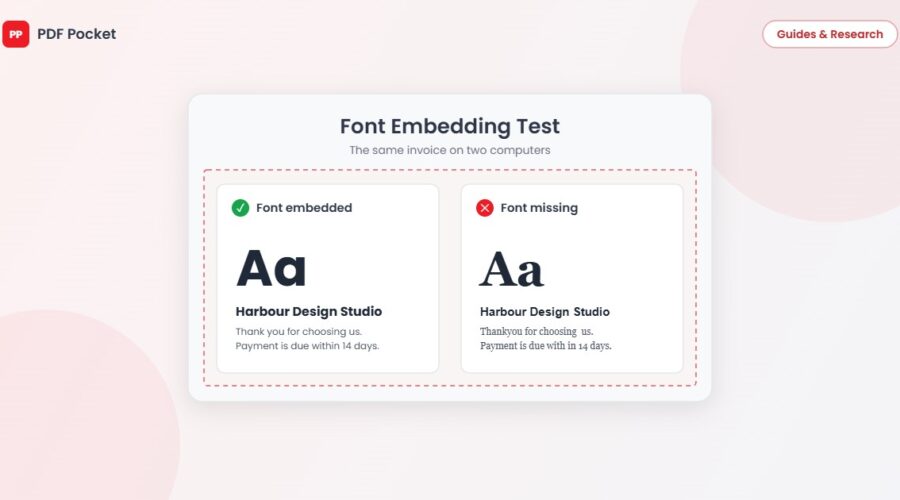
The embedded version looked exactly as designed. The version without fonts did not. The heading switched to a different bold sans-serif that was wider and heavier. The body text fell back to a serif font with broken spacing: “Thank you” ran together as “Thankyou”, “are” split into “a re”, and the email address squashed into one cramped string. Every word was still there, and you could copy the text out perfectly, but it looked like a mistake.
On an invoice, a CV or a cover letter, that’s the impression you don’t want to give.
What it cost in file size
| Version | File size |
|---|---|
| Standard fonts (Helvetica), nothing embedded | 1.7 KB |
| Poppins, not embedded | 4.7 KB |
| Poppins, embedded | 17.8 KB |
Embedding two fonts added about 13 KB. The full Poppins Bold and Regular font files are about 310 KB between them, so why so little? Because most PDF tools embed only the letters the document actually uses, which is called subsetting. Our invoice used a few dozen characters, so only those went in.
For a normal document, embedding costs you a few kilobytes. It’s never the reason a PDF is too big to email. Images are.
How to check if a PDF has its fonts embedded
- Adobe Acrobat Reader (free): open the file, go to File, then Document Properties, then the Fonts tab. Each font should say “Embedded” or “Embedded Subset”. If one doesn’t, that’s your problem.
- Quick test without any software: send the file to a phone or a different computer and look at it there. If headings or spacing look off, a font is missing.
If you see a font name with six capital letters and a plus sign in front, like AAAAAA+Poppins-Bold, that’s normal. It’s the label PDF tools give to a subset font.
How to make sure your fonts are embedded
Microsoft Word (Windows)
Use File, then Save As, then choose PDF as the file type. Word’s own PDF export embeds fonts automatically in almost every case. For extra safety, click Options in the save window and tick “ISO 19005-1 compliant (PDF/A)”, which forces every font to be embedded.
Avoid “printing” to a PDF printer you’ve installed from elsewhere unless you know it embeds fonts. Some don’t.
Microsoft Word (Mac)
File, then Save As, then pick PDF and choose “Best for electronic distribution and accessibility”. That option uses Microsoft’s online conversion and embeds fonts properly.
Google Docs
File, then Download, then PDF Document. Google embeds the fonts it uses, including the Google Fonts you pick from the menu.
LibreOffice
File, then Export As, then Export as PDF. Fonts are embedded by default. Ticking “Archive (PDF/A, ISO 19005)” on the General tab guarantees it.
Canva and other design tools
Download as “PDF Print” rather than “PDF Standard” if the design will be printed. Both embed fonts, but the print option keeps more detail.
Converting from Word with an online tool
Any converter, ours included, can only use the fonts installed on the machine doing the conversion. Word to PDF on PDF Pocket handles documents in common fonts like Arial, Calibri and Times New Roman well. If your document uses an unusual font, export it from Word or Google Docs on your own computer, where that font is installed, and check the result. Our guide to converting Word to PDF without formatting problems covers the other things that can shift, like page breaks and images.
What if you’ve received a PDF with missing fonts?
You can’t add a font to someone else’s PDF without editing software, but you have three easy options:
- Ask the sender to export it again using one of the methods above. Most people have no idea this happened.
- Install the missing font yourself. If it’s a free one like Poppins, Montserrat or Lato, you can download it from Google Fonts, then reopen the PDF.
- If you only need the text, convert it with PDF to Word. The words are all still in the file, even when the display looks wrong.
The short version
If a PDF looks different on another device, a font almost certainly wasn’t embedded. Embedding costs a few kilobytes, every mainstream app does it if you export the right way, and the check takes ten seconds in Acrobat Reader. For anything that represents you, like a CV, an invoice or a proposal, it’s worth those ten seconds before you hit send.