Sooner or later a form, a court portal or an archive will ask you to upload a document “in PDF/A format”. Most people have never heard of it, and the instructions rarely explain what it is. The good news is that you can almost certainly make one already, for free, with software you have.
This guide explains what PDF/A is, who asks for it, and how to create one in Word, LibreOffice and Google Docs. We also exported the same letter as a normal PDF and as a PDF/A to show what actually changes inside the file.
What PDF/A is
PDF/A is a stricter version of PDF designed for long-term storage. The “A” stands for archive. It’s an international standard, ISO 19005, and the idea behind it is simple: a PDF/A file should open and look exactly the same in 30 or 50 years, on software that doesn’t exist yet.
To make that possible, PDF/A bans anything that relies on something outside the file, or that might stop working in future:
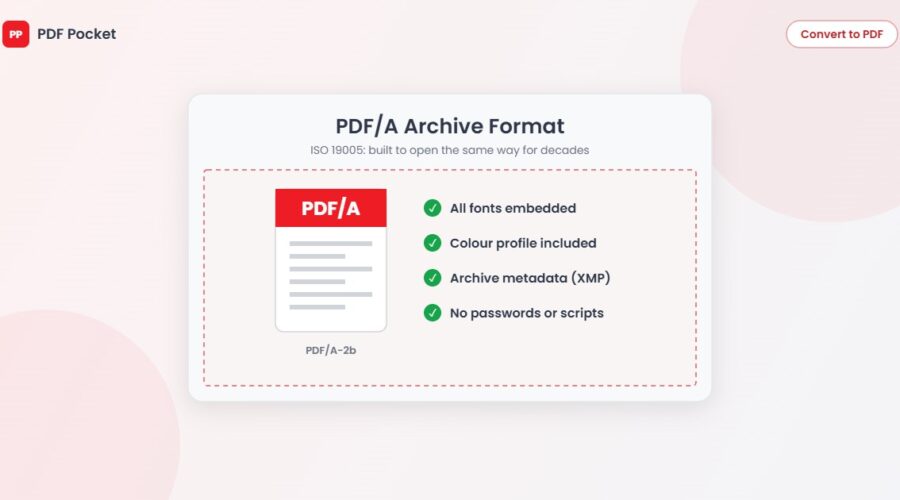
- All fonts must be embedded, so the text never depends on fonts installed on the reader’s computer
- No encryption or passwords, because a lost password would lock the document forever
- No JavaScript, audio or video
- No links to outside content that the page needs in order to display, such as fonts or images loaded from the web
- Colours must be defined precisely, using a built-in colour profile, so they don’t shift between screens and printers
- Metadata is required, stored in a standard format (XMP) that describes the document
The different versions
You’ll see names like PDF/A-1b or PDF/A-2u. The number is the version, and the letter is the level.
| Version | Published | What’s different |
|---|---|---|
| PDF/A-1 | 2005 | The original. Based on PDF 1.4, no transparency allowed. |
| PDF/A-2 | 2011 | Based on PDF 1.7. Allows transparency, layers and JPEG 2000 images. The most widely accepted today. |
| PDF/A-3 | 2012 | Same as A-2, but you can attach other files of any type. Used for e-invoices such as ZUGFeRD and Factur-X, where a data file rides inside the PDF. |
| PDF/A-4 | 2020 | Based on PDF 2.0. Simplified levels. |
And the levels:
- b (basic): the document looks right forever. This is what most portals mean.
- u (unicode): level b, plus all text can be reliably searched and copied.
- a (accessible): level u, plus a full structure for screen readers, such as headings and reading order.
If a form just says “PDF/A” with no version, PDF/A-2b is the safest choice. If it names a version, match it.
Who asks for PDF/A
- Courts and tribunals in many countries, for electronic filing
- Government bodies and local councils, for planning applications, tenders and records
- Archives, libraries and universities, including some universities for final theses and dissertations
- Businesses in regulated industries such as finance, insurance and healthcare, which must keep records for years
- E-invoicing systems, mainly in Germany and France, which use PDF/A-3
Our test: one letter, two exports
We wrote a short tenancy reference letter in a Word document and exported it twice with LibreOffice: once as a normal PDF and once as PDF/A-2b. Then we looked inside both files.
| Normal PDF | PDF/A-2b | |
|---|---|---|
| File size | 17.9 KB | 32.1 KB |
| Fonts embedded | Yes | Yes |
| Colour profile included | No | Yes (sRGB, 8.5 KB) |
| Archive metadata (XMP) | No | Yes (5.3 KB) |
| Marked as PDF/A inside the file | No | Yes, part 2, level B |
Two things stand out. First, the PDF/A version is about 14 KB bigger, and all of that extra size is the colour profile and the metadata. On a multi-page document with images, 14 KB is nothing. Second, the two files look identical on screen. PDF/A doesn’t change how your document looks today. It changes how reliably it will look the same later.
It’s also worth knowing that LibreOffice embedded the fonts in the normal export too. Most modern apps do. A normal PDF isn’t fragile. It just doesn’t come with guarantees, and PDF/A does.
How to save a PDF/A for free
Microsoft Word (Windows)
- Go to File, then Save As, and choose PDF from the file type list.
- Click Options.
- Tick “ISO 19005-1 compliant (PDF/A)” and click OK, then Save.
Word labels this option PDF/A-1, and depending on your version it may save as PDF/A-1 or PDF/A-2. If a portal insists on a specific version and rejects Word’s file, use LibreOffice instead.
LibreOffice (free, Windows, Mac and Linux)
- Open your document and go to File, then Export As, then Export as PDF.
- On the General tab, tick “Archive (PDF/A, ISO 19005)”.
- Pick the version from the drop-down. PDF/A-2b is the default.
- Click Export.
LibreOffice opens Word files, so this works even if you wrote the document in Word.
Google Docs
Google Docs can’t export PDF/A directly. Download the document as a Word file (File, then Download, then Microsoft Word), open it in Word or LibreOffice, and export from there using the steps above.
Converting an existing PDF
Turning an existing PDF into a proper PDF/A is harder, because the tool has to fix fonts, colours and metadata after the fact. Adobe Acrobat Pro does it through its Standards or Preflight tools, and that’s a paid feature. If you still have the original Word or LibreOffice file, exporting again from that is quicker and more reliable.
PDF Pocket’s tools don’t create PDF/A files at the moment. If you’re making a PDF/A from a scan or a photo, JPG to PDF is fine for turning images into a normal PDF first, but run the result through one of the methods above before you submit it.
Things that will break PDF/A
Once you have a PDF/A, some edits quietly take it out of compliance. The file will still open, but a strict portal may reject it:
- Adding a password. Encryption isn’t allowed, so don’t use Protect PDF on a file that has to stay PDF/A.
- Merging it with normal PDFs. The merged file is only as strict as its weakest part.
- Heavy compression or editing in a basic editor. Some tools strip the metadata or the colour profile.
The rule of thumb: make the PDF/A last, as the final step, and submit that file as it is.
How to check a file really is PDF/A
Opening a PDF/A in Adobe Acrobat Reader shows a blue bar at the top saying the file claims compliance with the PDF/A standard. That’s a good first sign, but it only reads the label inside the file. For a real check, use veraPDF, a free, open-source validator from the Open Preservation Foundation and the PDF Association. It reads the whole file against the standard and tells you exactly which rule fails, if any.
Quick answers
Is PDF/A the same as a “flattened” PDF? No. Flattening merges form fields and annotations into the page. A PDF/A can still have form fields, though they can’t run scripts.
Can I still edit a PDF/A? Yes, with any PDF editor, but the edit may break compliance. Re-export from the original document if you can.
Will PDF/A make my file smaller? No. Expect it to be slightly bigger, as our test showed. If it’s too large to upload, reduce the images in the original document before exporting.