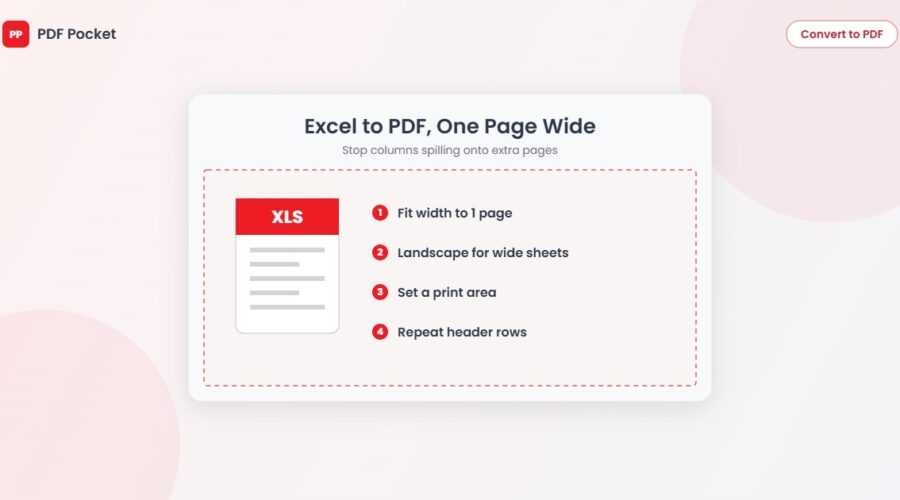
Before saving, go to Page Layout and set the width to fit one page (Scale to Fit, Width: 1 page), choose Landscape for wide sheets, and set a print area if you only need part of the sheet. Then use File, Save As, PDF. This stops columns spilling onto extra pages, the most common problem when turning a spreadsheet into a PDF.
Excel was built for screens, not paper. A sheet that looks neat on your monitor can turn into a twelve-page PDF where the last two columns sit alone on their own pages. These steps fix that in a couple of minutes.
Step 1: Check the page breaks first
Go to View, then Page Break Preview. Excel shows blue lines where each PDF page will start and end. If a dashed blue line cuts through your columns, those columns will land on a separate page. You can drag the blue lines to move the breaks.
Step 2: Fit the columns to one page wide
- Go to the Page Layout tab.
- In the Scale to Fit group, set Width to 1 page.
- Leave Height on Automatic, so long sheets can still run over several pages.
Setting both width and height to one page squeezes everything onto a single sheet, which works for small tables but makes large ones unreadable. Width only is the safer choice.
Step 3: Switch to landscape for wide sheets
On the Page Layout tab, choose Orientation, then Landscape. An A4 page in landscape is about 41% wider than in portrait, so a sheet with eight or more columns usually fits without shrinking the text too much.
Step 4: Print only what you need
Select the cells you want, then go to Page Layout, Print Area, Set Print Area. Notes, workings or helper columns outside that area won’t appear in the PDF.
Step 5: Repeat headings on every page
On long tables, readers lose track of which column is which by page three. Go to Page Layout, Print Titles, and in Rows to repeat at top, select your header row. It will appear at the top of every PDF page.
Step 6: Save as PDF
- Windows: File, Save As, choose PDF in the file type list. Click Options to choose between the active sheet, a selection or the entire workbook.
- Mac: File, Save As, then choose PDF as the file format.
- No Excel installed: upload the file to Excel to PDF. Set the page layout options above in Excel or Google Sheets first and save the file, since page settings stored in the workbook are generally carried into the PDF. Check the result before sending it.
Common problems
Only one sheet came through
By default Excel saves the active sheet. In the Options window on Windows, choose Entire workbook.
Some cells show ####
The column is too narrow for the number at the chosen scale. Widen the column or reduce the font size, then save again.
Gridlines are missing
Excel doesn’t print gridlines unless you ask. On the Page Layout tab, under Gridlines, tick Print. Adding borders to the table instead usually looks cleaner.
The text is tiny
Your sheet is too wide for one page even in landscape. Hide columns you don’t need, or let the width run to two pages and repeat the first column on each with Print Titles (Columns to repeat at left).
FAQ
Will formulas still work in the PDF?
No. A PDF shows the values the formulas produced at the moment you saved. Share the Excel file itself if people need to change the numbers.
Can I turn the PDF back into a spreadsheet?
Yes, though the result may need tidying. Our guide to copying a table from a PDF into Excel compares four methods.